Configure the Fields Required for Creating Company Profile and Adding a Primary Contact for the Account Receivable
Stay is enhanced to allow users to select the fields that are required to create a company profile and add a primary contact for the A/R account. This feature is not applicable to the other profiles, such as, guest profile, and travel agent profile.
Users can select the required fields in the Field Settings screen (Settings ➜ All Settings ➜ General ➜ Field Settings). This screen displays the following tabs:
-
Company profile
-
Account Receivable
Configure the Fields Required for Company Profiles
Users can select the required fields for creating company profiles from the Company Profile tab on the Field Settings screen. The Fields Required for Company Profile section displays the following columns:
|
Field |
Description |
|---|---|
|
Condition |
Displays the condition number of the created conditions. |
|
Fields |
This is a multi-select drop-down list that allows users to select the required fields from the following:
|
|
Required Fields |
Displays the following options:
|
|
Action |
Users can delete the condition using the delete icon. |
Users can create multiple conditions by clicking the Add a New Condition option. This option is disabled once all the fields are selected for the conditions. The fields selected for a condition are not displayed for selection when creating other conditions. The created conditions are applicable at the customer level.
The required fields for which the option All is selected are indicated by a red asterisk on the company profile creation page. The fields for which the option Any One is selected are displayed at the top of the profile creation page in the following format: <field 1>, <field 2>, or <field 3> is required for the company profile.
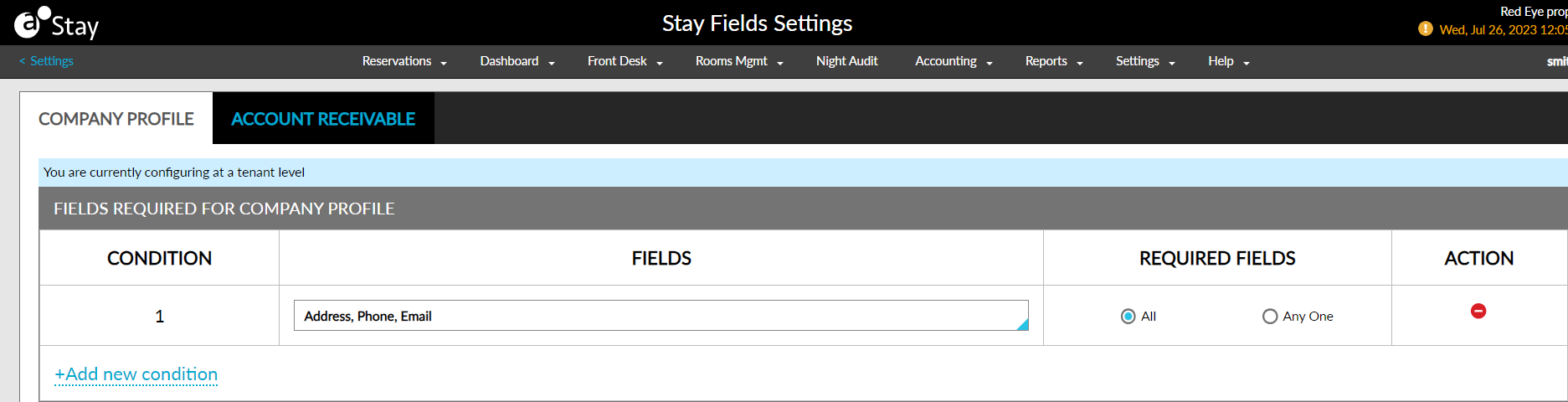
When creating the company profile, the system validates the conditions created for the fields. When Contact is selected as a mandatory field for creating a company profile, the Add option is enabled in the Contacts section of the company profile to allow users to select contacts to be added to the profile.
If the values are entered for the required fields based on the conditions, the company profile is created successfully. If values are not entered for the required fields, the Save button remains disabled.
Configure the Fields Required for Adding a Primary Contact for the A/R Account
Users can select the fields required for adding a primary contact for the A/R account from the Account Receivable tab on the Field Settings screen.
The Select Fields drop-down list on the Fields Required for Account Receivable section of the Account Receivable tab displays the following options:
-
Address
-
Phone
-
Email
-
Credit Limit
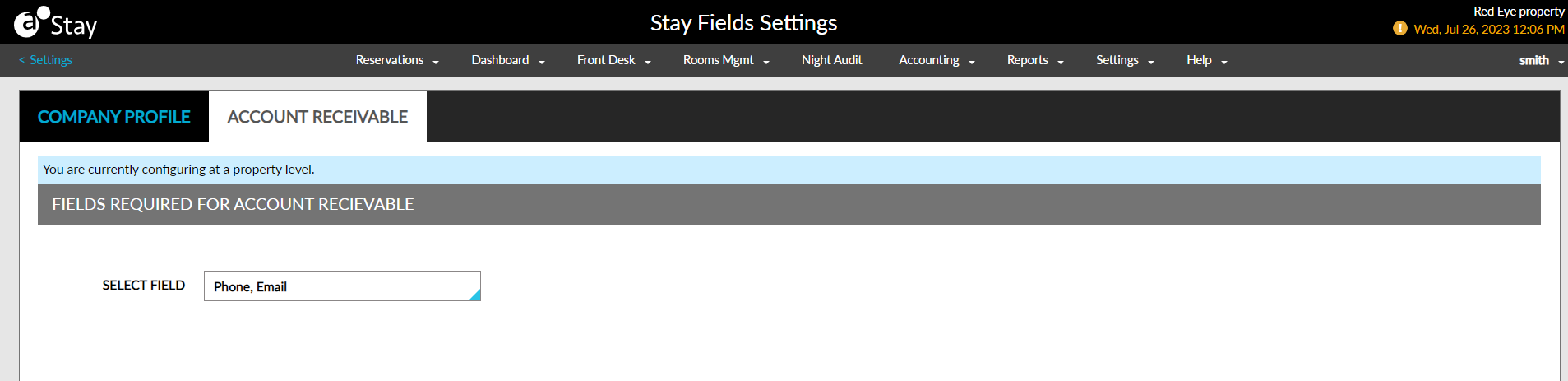
The configurations saved are applicable at the property level. When creating the A/R account, users can enter the details of the primary contact in the Primary Contact section of the Account Receivable tab of the A/R account.
Users can select the contact from the parent profile. Once the contact is selected, the address, phone number and the email address associated with the selected contact is displayed in the subsequent fields.
Users can also add a new address, phone number or email address that is not associated with the parent profile by clicking the Update Contact option. When clicked, the Contact Details to Primary Contact screen appears that allows users to add a new address, phone number or email address. The fields that are marked as required in the Field Settings screen are indicated by a red asterisk on the Contact Details to Primary Contact screen.
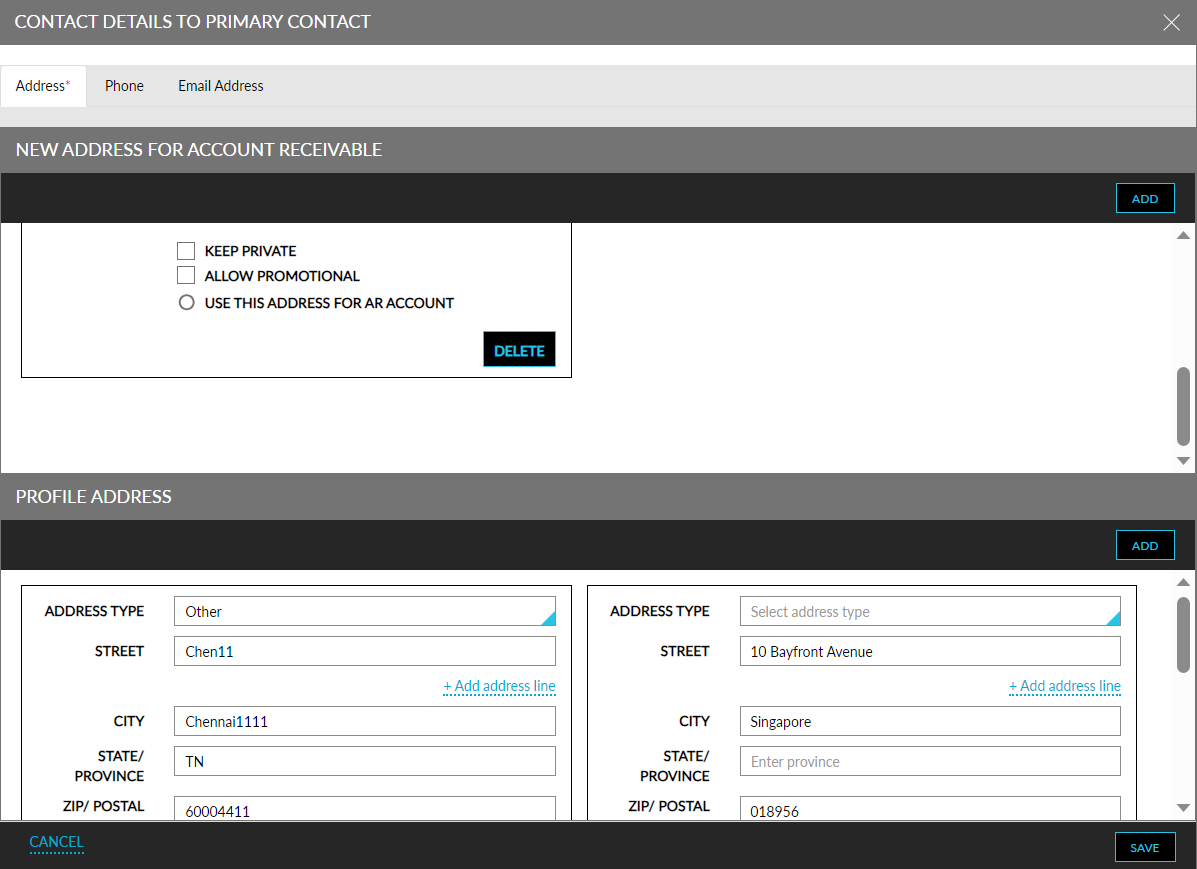
When saving a new address/phone number/email address, users must confirm if the information should be saved only in the A/R account or in the parent profile. The information saved to the A/R account cannot be reused in any other properties, whereas the information saved to the parent profile can be reused in other properties.
When users try to add a primary contact to an A/R account that does not have values for all the required fields, the Save button remains disabled. Users must then add values for the missing fields using the Update Contact option and then save the primary contact to the account.
Display Contact Details in A/R Account Default Settings Section
The details of the primary contact selected in the Account Receivable tab is displayed in the Manage and Apply Settings screen on the All Properties tab of the A/R account. Users can also change the primary contact associated with the A/R account from the Account Contact drop-down list. Based on the contact selected, the address, phone number and email address of the profile are displayed in the subsequent fields.
Users can also select a different address/phone number/email address for the contact from the address/phone number/email address drop-down lists. The details that are saved only to the A/R account are not displayed in the drop-down lists. Only the details that are saved to the profile are displayed.
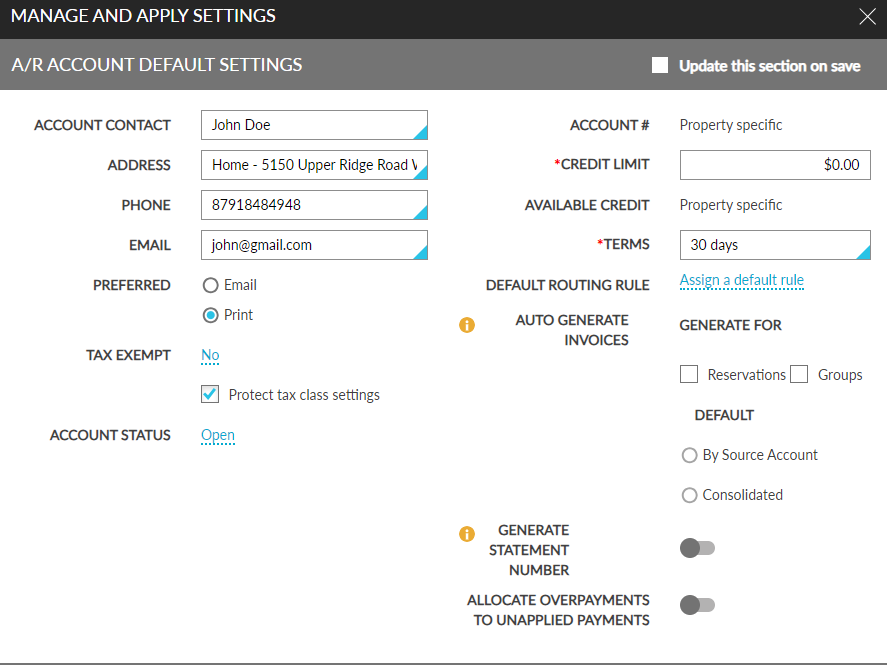
When the Create missing A/R accounts for all properties checkbox in the A/R Account Creation section is enabled, the Default Account Contact drop-down list becomes mandatory. The Save button gets enabled only when users select a default contact for the account. Based on the contact selected, the A/R account is created with the address, email address, and phone number of the primary contact information of the selected contact.
Display Contact Details for A/R Account in Reports
The details of the primary contact associated with the A/R account are displayed in the AR Account Lists Report (Legacy) under the A/R Account Contact column. The address, phone number, and the email address selected for the primary contact is displayed along with the primary contact’s name in the following format:
Primary contact name
Phone
Address
To support this enhancement, the following changes have been made:
-
Two new tabs, Company Profile, and Account Receivable have been added to the Stay Field Settings screen (Settings ➜All Settings ➜General ➜Field Settings) that allows users to configure the mandatory fields required for creating company profiles and A/R accounts.
-
A new button, Update Contact, has been added to the Accounts Receivable tab of the company profile. When clicked, users can update the contact details for the A/R accounts.